Browsing Data
The GHGA Data Portal is a secure national infrastructure for human omics data available under controlled access. To browse data, please visit the GHGA Data Portal at data.ghga.de and go to the "Browse" page.
No account required
Browsing and searching datasets on the GHGA Data Portal is open to everyone and does not require a Life Science Login or registration. An account is only needed once you want to request access to a dataset.
Finding Datasets
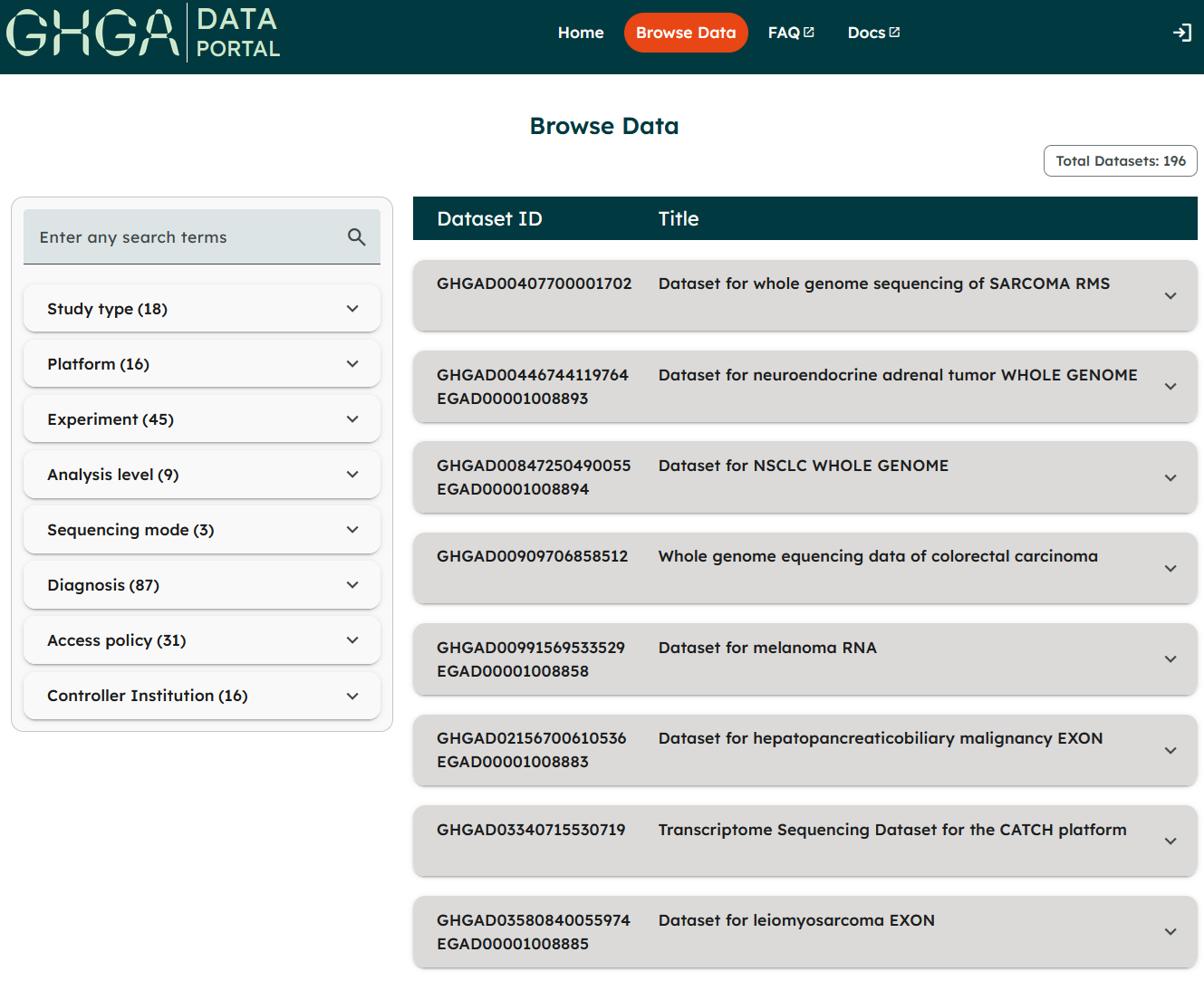
The Browse page lists all datasets currently available on GHGA. Two complementary tools help you narrow this list down to the datasets you're interested in: keyword search and filters. The total number of matching datasets is always shown at the top-right of the page ("Total Datasets").
Keyword Search
Use the "Enter any search terms" field above the filters to search for datasets by keyword, e.g. a study title or disease. Keyword search can be combined with the filters described below.
Filtering
Filters are grouped into categories on the left, such as Study Type, Platform, Experiment, Analysis Level, Sequencing Mode, Diagnosis, Access Policy, and Controller Institution. Click a category to expand it and reveal its checkbox options, each annotated with the number of matching datasets.
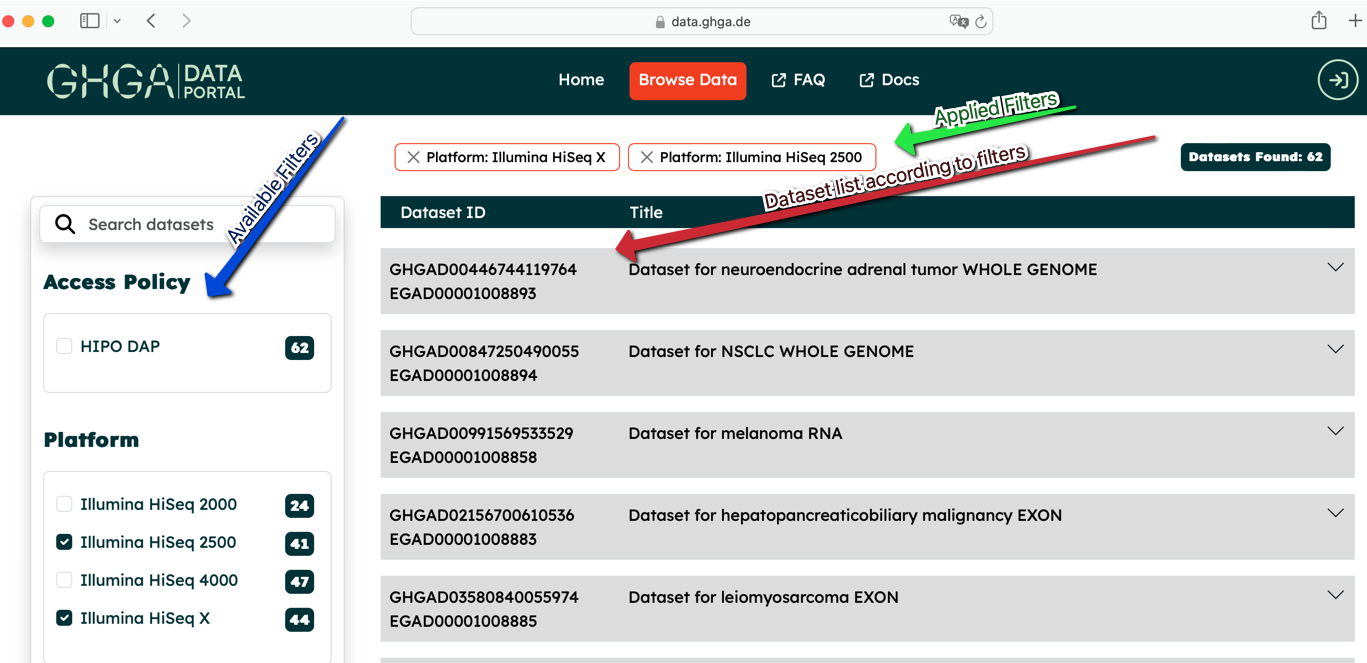
- Select one or more checkboxes to apply that filter. The dataset list updates immediately, and each applied filter appears as a removable chip below the filter categories.
- Applied filters can be removed individually by clicking the "x" on their chip.
Dataset Preview
Click on any dataset in the list to open a preview with a short description and summary information:
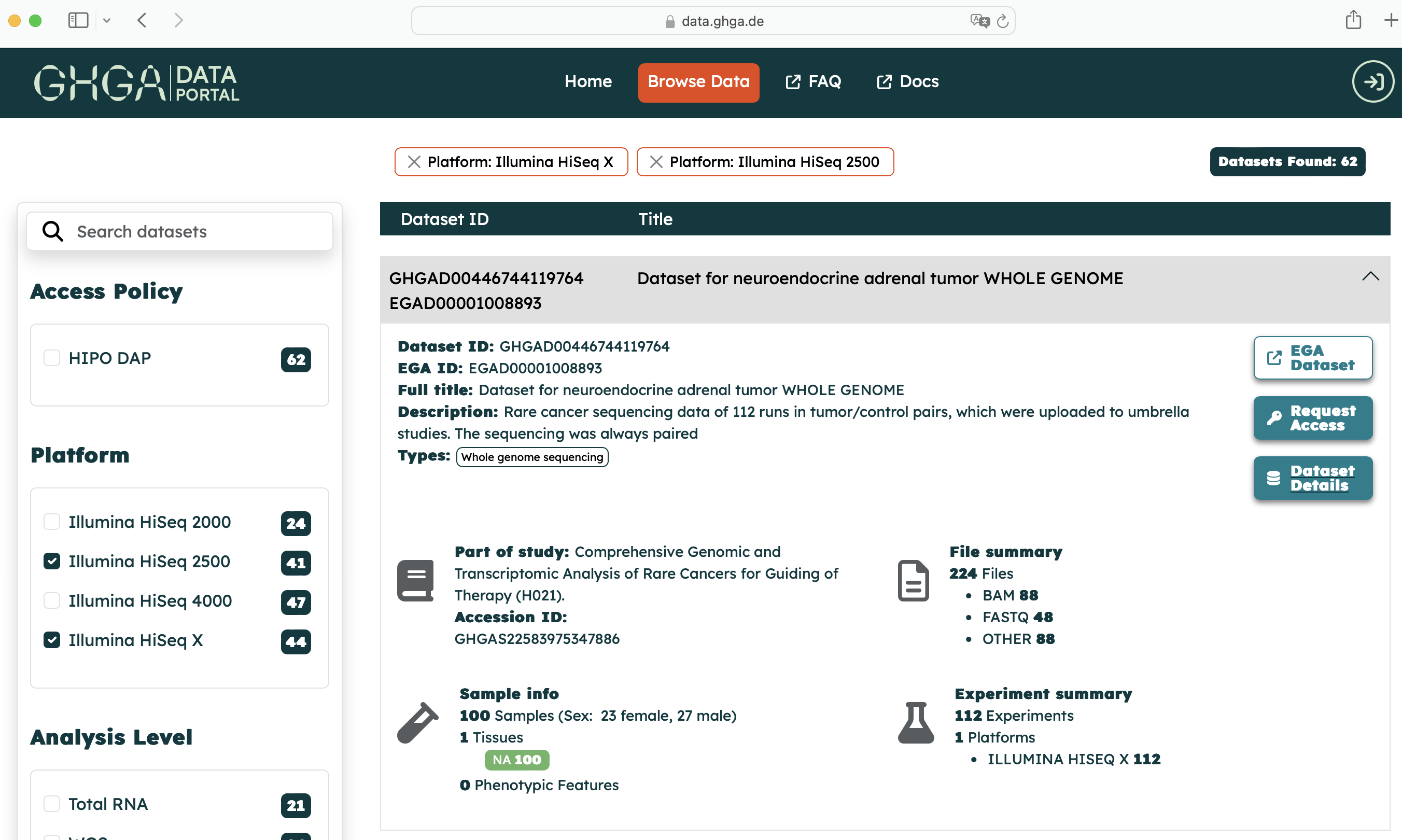
From this preview, the following actions are available:
- EGA Dataset – shown only if the dataset is also listed on the EGA Archive; opens the corresponding dataset page on EGA in a new tab.
- Request Access – opens (after login) a form to request access to the dataset. See Accessing Data for further details.
- Dataset Details – opens the full Dataset Details view described below.
Dataset Details
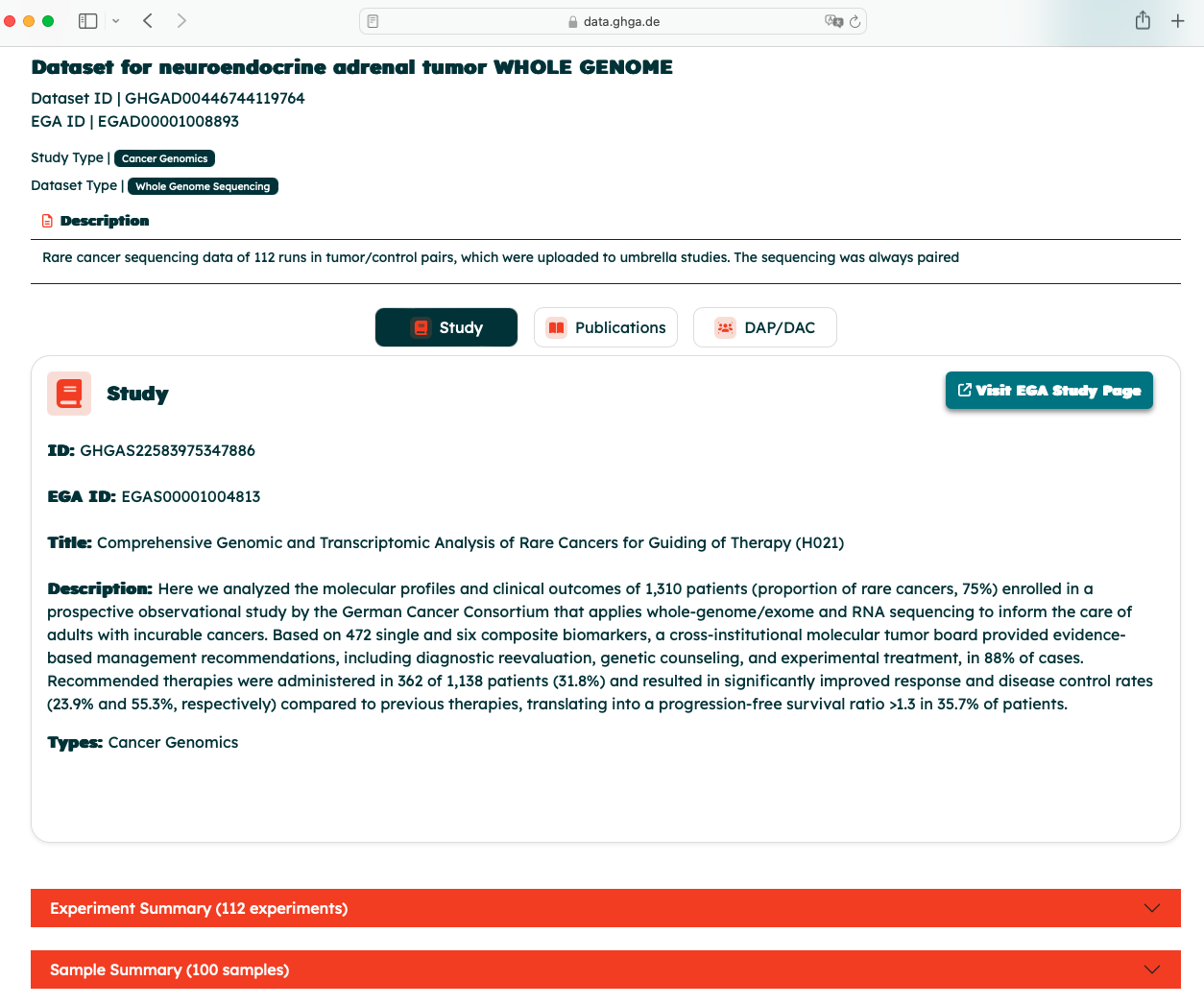
Clicking "Dataset Details" in the dataset preview opens the full metadata view for that dataset, organised into Study, Publications, and DAP/DAC tabs, plus an expandable content overview. This view includes:
- Study description (Study tab)
- Linked publications (Publications tab)
- Data Access Details (DAP/DAC tab)
- List of experiments
- List of samples
- List of files, including the total file size
A "Download Metadata" button lets you download the complete metadata for the dataset. The meaning of the individual fields is explained in the Metadata Model documentation.
Next Steps
Found a dataset you'd like to use? Continue to Accessing Data to learn how to request access and, once approved, download the files.